
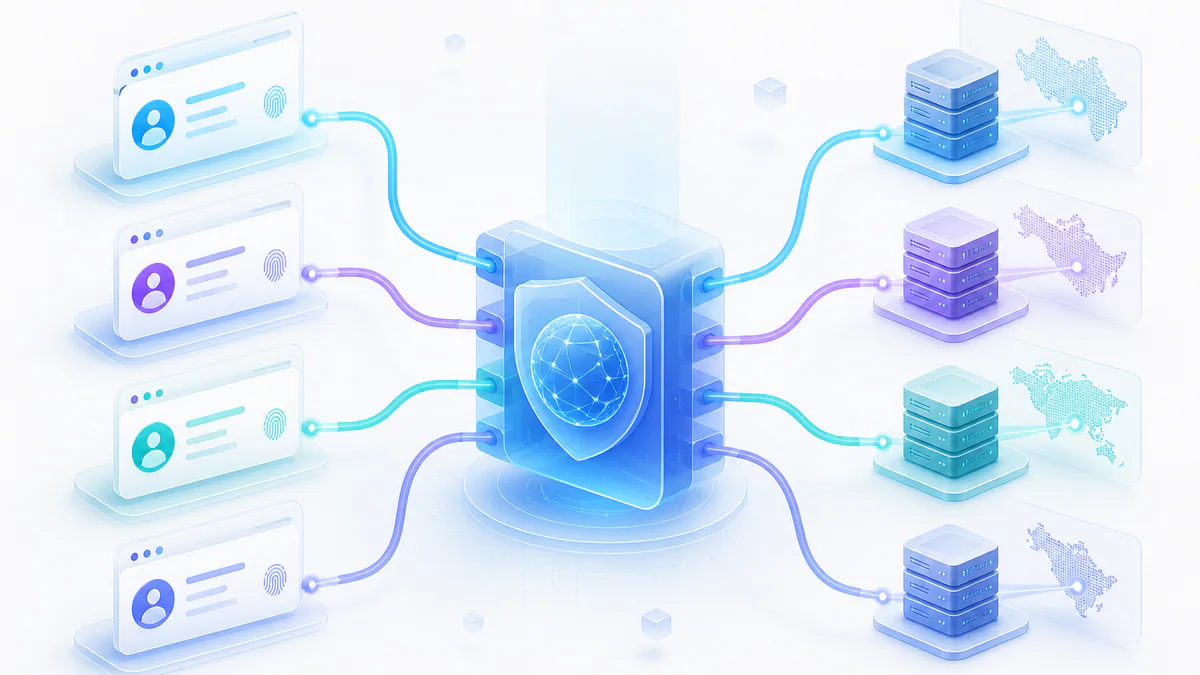
Incogniton is a multi-profile browser that helps users manage separate browser identities without mixing cookies, user agents, fingerprints, and proxy settings.
Backconnect proxies add rotating IP addresses to these browser profiles, making each session more flexible and private.
This tutorial explains how to connect Incogniton with ProxyTitan rotating proxies and how to verify that the proxy setup works correctly.
- Incogniton lets you create isolated browser profiles with separate settings.
- Backconnect proxies rotate IP addresses from a larger proxy pool.
- Using both tools together helps separate browser identities and reduce IP-based detection.
- Proxy setup in Incogniton requires proxy type, host, port, and authentication details.
What Is Incogniton?
Incogniton is browser software built for managing multiple browser profiles. Each profile can use its own cookies, browser fingerprint, user-agent, and proxy configuration.
This is useful for digital marketers, researchers, agencies, and businesses that need separated browser environments for different accounts or workflows.
Instead of mixing all sessions in one browser, Incogniton lets you isolate each profile and control the settings separately.
Official tool
Incogniton is used to create isolated browser profiles with separate browser identities.
Main benefits:
- Create separate browser profiles.
- Use different cookies, user agents, and proxy settings.
- Reduce account overlap between browser sessions.
- Manage multiple workflows from one browser environment.
What Are Backconnect Proxies?
Backconnect proxies are proxy services that automatically rotate IP addresses from a larger proxy pool.
Instead of manually switching between individual proxy IPs, users connect to one proxy gateway. The provider handles IP rotation in the background.
This can change the visible IP after each request, after each session, or after a fixed time interval depending on the proxy configuration.
Related proxy option
For this setup, compare ProxyTitan rotating proxies with HTTP and SOCKS5 support.
Backconnect proxy features:
- Automatic IP rotation.
- Access through one proxy endpoint.
- Large proxy pool behind the gateway.
- Useful for browsing, scraping, ad verification, automation, and account separation.
Why Use Backconnect Proxies with Incogniton?
Using backconnect proxies with Incogniton helps each browser profile operate with a separate visible IP address.
This is useful when managing multiple browser profiles because each profile can have a more isolated digital footprint.
Backconnect proxies also help reduce IP-based blocks by rotating through different proxy exits instead of relying on one fixed IP address.
The combination is especially useful for web scraping, ad verification, research, automation, and workflows where reliability and anonymity matter.
Why the combination works well:
- Incogniton separates browser profiles.
- Backconnect proxies separate network identities.
- Rotating IPs reduce repeated use of one address.
- HTTP and SOCKS5 proxy support makes setup flexible.
Best Practices for Using Backconnect Proxies with Incogniton
A reliable Incogniton proxy setup depends on using high-quality proxies, correct credentials, and consistent testing.
Avoid unknown free proxies for sensitive browser profiles because they can be slow, unstable, or unsafe.
Use providers that support HTTP and SOCKS5, provide clear authentication details, and offer stable uptime.
Best practices:
- Choose a reliable proxy provider with strong uptime.
- Use proxies that support HTTP or SOCKS5.
- Test every proxy profile before using it.
- Avoid free proxies for secure or business-critical workflows.
- Keep browser profiles separated by use case.
- Rotate proxies periodically for stronger anonymity.
Conclusion
Using Incogniton with backconnect proxies gives you separated browser profiles and rotating IP addresses in one workflow.
This setup helps improve anonymity, reduce restrictions, and lower the chance of detection or bans when managing multiple browser sessions.
For workflows like web scraping, ad verification, research, and automation, combining Incogniton with ProxyTitan rotating proxies can create a more stable and private browsing setup.
Step-by-Step Guide to Using Backconnect Proxies with Incogniton
Follow these steps to create an Incogniton browser profile and attach a ProxyTitan backconnect proxy.
Install Incogniton
Visit the official Incogniton website and download the application.
Complete the installation process and launch the app.

Create a Browser Profile
Open Incogniton and go to the Profile Management section.
Click New Profile and enter a clear profile name.

Add a Backconnect Proxy
Open the proxy settings inside the browser profile.
Enter the proxy host, port, username, and password from your proxy provider.
Choose the correct proxy type, such as HTTP or SOCKS5.

Verify the Proxy Configuration
Click Check Proxy to test whether the proxy is active.
If the proxy check succeeds, save the profile by clicking Create Profile.

Launch the Browser Profile
Start the browser profile with the configured proxy.
Open a test website such as httpbin.org to confirm that the visible IP address uses your ProxyTitan proxy route.

Incogniton Proxy Setup FAQ
Need backconnect proxies for browser profiles?
Use ProxyTitan when your Incogniton profiles need rotating IPs, HTTP and SOCKS5 support, private authentication, and stable uptime.